Face the hanging microphone
The lead is framed at a suspended chrome microphone, with warm light and a softly blurred crowd behind.
Make a Give It All AI hanging-mic video from one adult or pet photo. Explore the warm crowd scene, select video settings and review the credit quote before generating.
This preset takes the visual idea of a close, crowd-backed microphone performance and builds a new scene around your photo. The reference moves between a front view, a side close-up and a final gesture. Your result uses a written motion preset rather than a reference-video transfer, so framing, cuts, expressions and timing can differ.
The lead is framed at a suspended chrome microphone, with warm light and a softly blurred crowd behind.
A short side angle and small rhythmic gestures keep attention on the same recognizable lead.
End with a clear forward-facing gesture; pet versions use natural head and paw movements.
Follow the photo tips for this scene. Keep the lead subject visible and use only photos you own or have permission to use.
Use the generator on this page. The scene direction is included. Choose model, resolution and duration, review the credit quote, and confirm permission to use the photo.
Review the lead identity, anatomy and scene continuity in your result here. Completed videos also appear in your private works; download within the retention period.
Use the editor on this page, upload the authorized photo described above and choose supported model, resolution, duration and format options. Review the server credit quote, sign in and explicitly confirm before submitting. Results appear here and in My creations.
No. The sample keeps its original audio and any original source markings for preview. New PicTV video tasks request native model audio, not a copied recording, lyrics or artist voice. Exact movements, lip-sync and a usable audio track are not guaranteed; this is not an official artist collaboration.
The reference is 15 seconds at 720×1280 (9:16). The existing editor starts at 5 seconds in portrait format and offers supported video settings. Your selected settings and server quote determine the new output; the source website’s prices, subscriptions, fixed timing and soundtrack controls do not apply here.
Return to the same task here or in My creations instead of blindly submitting again when its status is unknown. Generated media is private to your account and follows PicTV’s 30-day retention policy. Contact Support with the task ID if you need help.
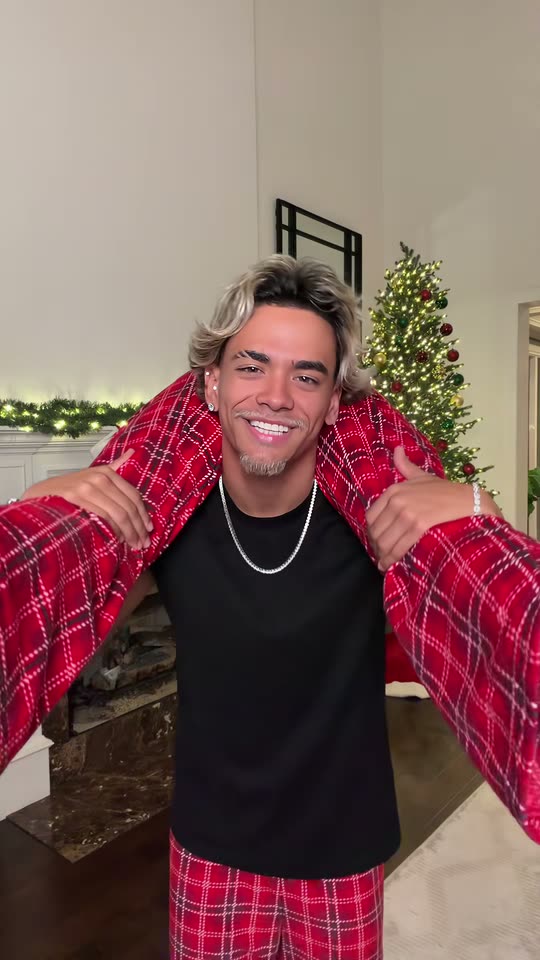
Create a Put The Rollie On My Wrist-inspired duo clip from one photo of two consenting adults. Preview the festive handoff, choose settings and generate on PicTV.
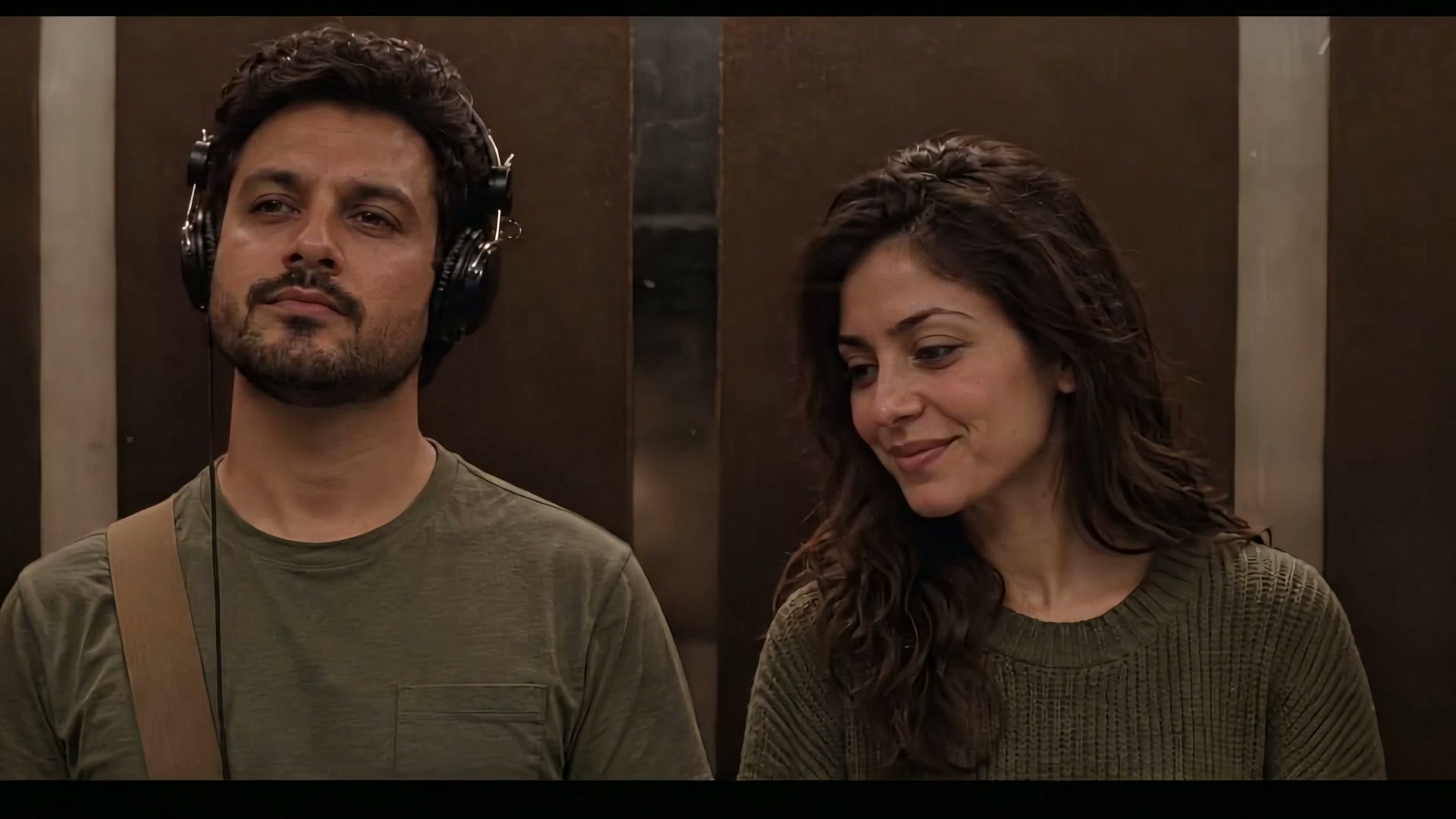
Create an I Love The Smiths-inspired elevator moment from one two-person photo. Watch the wide-screen sample, choose settings and generate on this PicTV page.
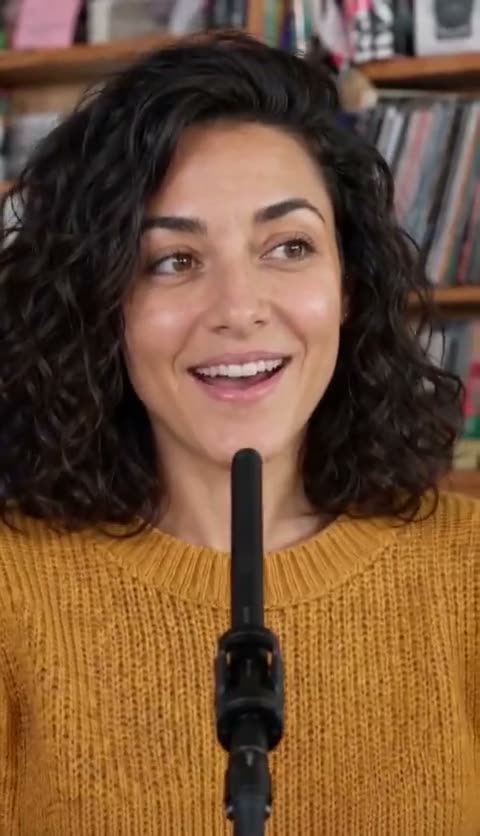
Create a Tiny Desk singer video from one portrait. Preview the close-up vocal and keyboard scene, choose settings and generate your own performance on PicTV.
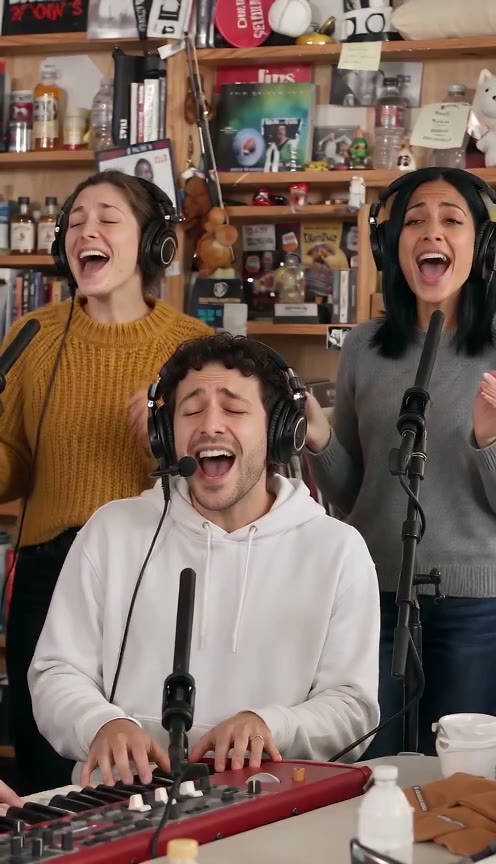
Make a Tiny Desk AI-inspired band video from one lead-singer photo. Preview the desk performance, choose video settings and generate your own version on PicTV.